Logging in to LINQ Employee Portal using Two Factor Authentication
When Two Factor Authentication is implemented, you must complete these steps to log in to LINQ Employee Portal (EP):
-
Install an Authenticator app on your phone.
Check with your organization to determine the Authenticator app to install. LINQ prefers and officially supports Google Authenticator and Microsoft Authenticator.
Follow the steps provided by your administrator to define your One Time Password (OTP) for the LINQ EP.
|
|
If allowed by the district, you can turn off Two Factor Authentication temporarily on a specific device. The system administrator sets the temporary time limit. When the time limit expires, you must log in to LINQ EP using your One Time Password. |

To log in to LINQ EP using Two Factor Authentication:
- Launch your browser and open LINQ EP. The Employee Portal 2-Step Verification Login page is displayed.
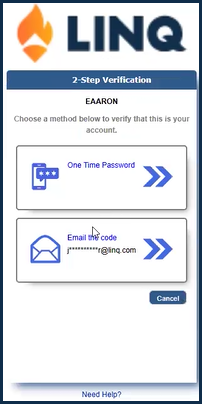
2-Step Verification Login page - Click the One Time Password button to generate a code in your Authenticator app. The 2-Step Verification page opens.
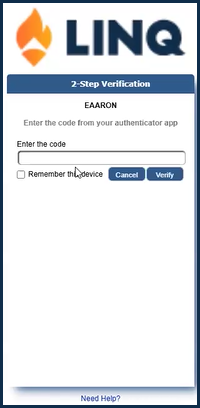
2-Step Verification Login page - Enter the Code - Open the Authenticator app on your phone. Type the code displayed into the Enter the code box.
- Optionally, and only if displayed, click to select the Remember this device check box to disable Two Factor Authentication temporarily on the device being used to access LINQ EP. Two Factor Authentication is disabled for a specific time period set by the administrator. At the end of that time period, Two Factor Authentication is enabled automatically.
District policy will determine if this option is available. The check box will not display if the district requires Two Factor Authentication to be used every time users log in to LINQ EP. - Click the Verify button. The LINQ Employee Portal Home page appears.